
Online Documentation for SQL Manager for PostgreSQL
Chat view
The chat view takes up most of the assistant panel, showing your messages and the assistant's replies in the order they appear. Your messages are aligned to the right, the assistant's replies to the left. Any context attached to a message is shown as chips above it.
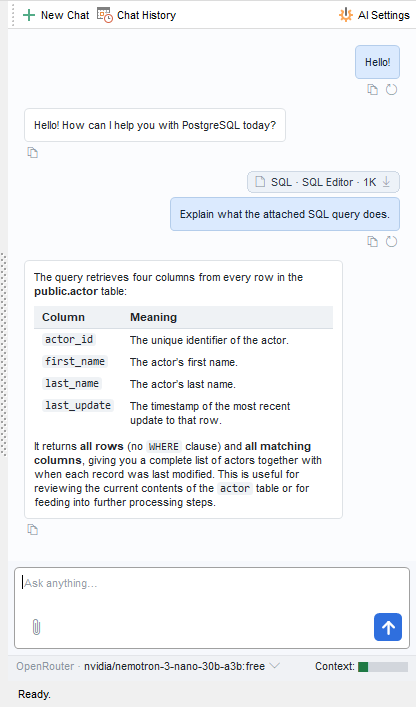
Each of your messages has a regenerate button below it: it resends the same request with the same context. The previous reply is kept, and the new one is added to the end of the chat view. Below every message — both yours and the assistant's replies — there is a copy button that copies the whole text of the message to the clipboard.
While the assistant is preparing a reply, an animated AI Assistant icon is displayed. If the request fails, a message explaining the reason appears instead. The chat view scrolls down to each new message automatically.
Code fragments in the assistant's replies are shown in separate blocks.
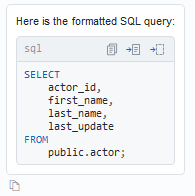
The block header displays the code language along with the following buttons:
- Copy to clipboard — copy the code fragment to the clipboard.
-
Insert to active editor — insert the code fragment into the active editor window. The button is available if the active window contains a code editor and the
 Allow paste into active editor option is selected. If the fragment would replace the text selected in the editor or the statement containing the cursor, the Confirm Changes window opens. If the cursor is outside any statement, the fragment is inserted at the cursor position without a preview.
- Insert to new editor — insert the code fragment into a new Query Data tab.
Long code blocks are collapsed to the first 20 lines, with an Expand/Collapse button at the bottom of the block. The copy and insert buttons always work with the entire text of the block. Long lines are not wrapped and can be scrolled horizontally. You can also select text inside a block and copy it with Ctrl+C or with the Copy context menu item, which appears only when text is selected.
Replies from the assistant can also contain tables. If a table is wider than the panel, a horizontal scroll bar appears below it. In tables and code blocks you can scroll horizontally with Shift+mouse wheel.
See also: