
Online Documentation for SQL Manager for PostgreSQL
Overview
The AI Assistant panel is docked at the right side of the program window and is shown by default. To hide the panel or show it again, use the View | AI Assistant main menu item, or click the dotted area in the middle of the splitter between the panel and the working area.
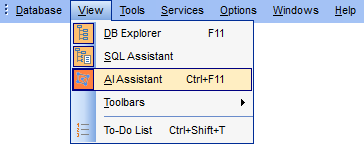
You can drag the splitter to adjust the width of the AI Assistant panel.
Hiding the panel or switching to another tab of the application does not interrupt the conversation or a request in progress.
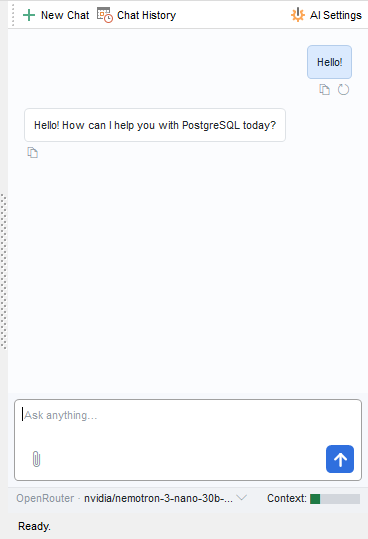
The following buttons are available at the top of the panel:
-
New Chat — start a new chat. The current conversation is saved to history (provided
 Keep chat history is selected), and the chat view, the collected context and any typed text are cleared.
- Chat History — open the Chat history window.
- AI Settings — open the AI Assistant section of the Environment Options dialog.
Most of the panel is occupied by the chat view — your messages and the assistant's replies in the order they appear. The input field is located below the chat view, with the status bar underneath showing the active provider, the selected model and the context size indicator.
The status of the assistant is shown at the bottom of the panel.
See also: