
Online Documentation for SQL Manager for PostgreSQL
Confirm Changes window
The Confirm Changes window opens when you insert a code fragment from the assistant's reply into the active editor (the Insert to active editor button) — but only if the fragment would replace the text selected in the editor or the statement containing the cursor. If the cursor is outside any statement, the fragment is inserted at the cursor position and the window does not appear. The window also does not open if the suggested fragment is identical to the text already in the editor.
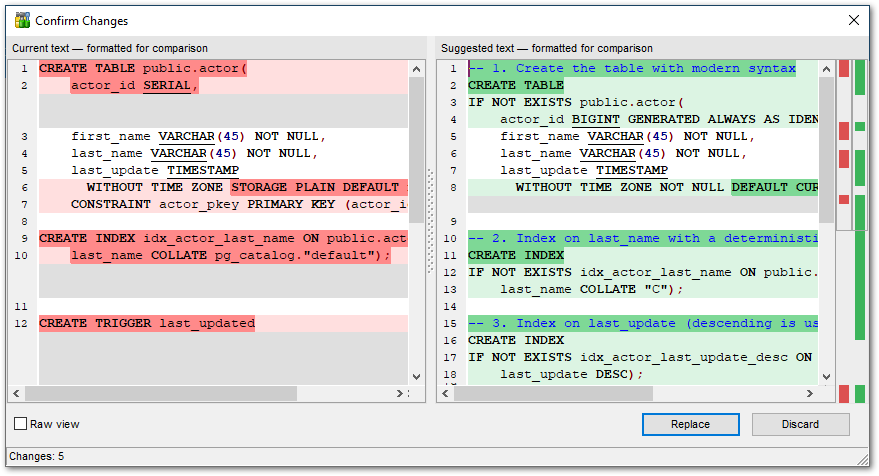
The window shows two panes: Current text on the left, with the text currently in the editor, and Suggested text on the right, with the fragment suggested by the assistant. Lines in both panes are numbered, and the panes scroll together. Syntax highlighting, font and color scheme follow the editor options. The suggested text is read-only — you cannot edit the assistant's reply before inserting it — but you can select and copy text in both panes.
The text in the editor and the reply from the assistant may be formatted differently, so the program reformats both before comparing them; the reply itself is inserted into the editor unchanged. When this happens, the pane headers say formatted for comparison. Select the  Raw view check box to compare the texts exactly as they are written. If the texts differ only in formatting and the query itself is unchanged, this is reported in the status bar at the bottom of the window.
Differences are highlighted in color: deleted lines in red in the left pane, added lines in green in the right one. A changed line is highlighted on both sides, red for the current version and green for the suggested one. Within a changed line, the color covers whole elements of the query — identifiers, keywords, literals — rather than individual characters. Where a line is missing on one side, an empty placeholder appears without a line number.
Two navigation bars run along the right edge of the window: the left one for the current text, the right one for the suggested text. The marks on them show where the differences are, and clicking a mark scrolls both panes to that difference. The total number of differences is shown in the status bar at the bottom of the window.
Click Replace to substitute the assistant's text for the fragment in the editor; the inserted text stays selected. To undo a replacement, press Ctrl+Z. Click Discard or press Esc to close the window and leave the editor untouched.
See also: