
Online Documentation for SQL Manager for PostgreSQL
Chat history
Click the Chat History button on the assistant panel to open the Chat History window. It lists all the saved conversations with the AI Assistant, sorted by the date of the last message, from the newest to the oldest. For each conversation you can see the date and time of the last message, the number of messages in square brackets, and a title based on the first message.
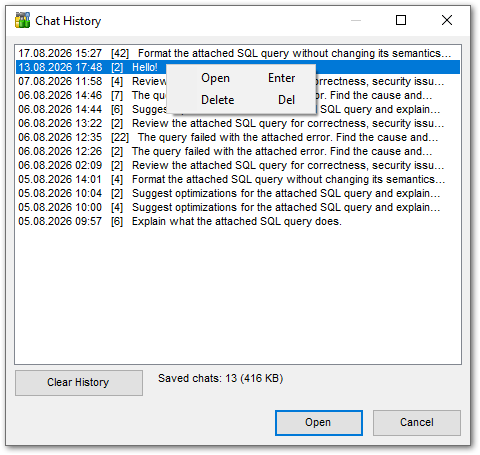
To open a chat, double-click a row in the list, click Open, press Enter or select Open from the context menu. The messages appear in the chat view and you can carry on with the conversation. Before the selected chat is opened, the current one is saved to history — provided the  Keep chat history option is selected.
To delete a chat from the history, press Del or select Delete from the context menu. You will be asked to confirm the deletion.
The Clear History button deletes the whole saved history; this also requires confirmation. To the right of the button you can see how many chats are stored and how much space they take up. The chat currently open in the assistant panel is not deleted. The Clear chat history button in the AI Assistant options has the same effect.
The Cancel button closes the window without opening a chat.
How the chat history is stored and cleared is set on the AI Assistant tab of the Environment Options dialog.
See also: