
Online Documentation for SQL Manager for PostgreSQL
Endpoints
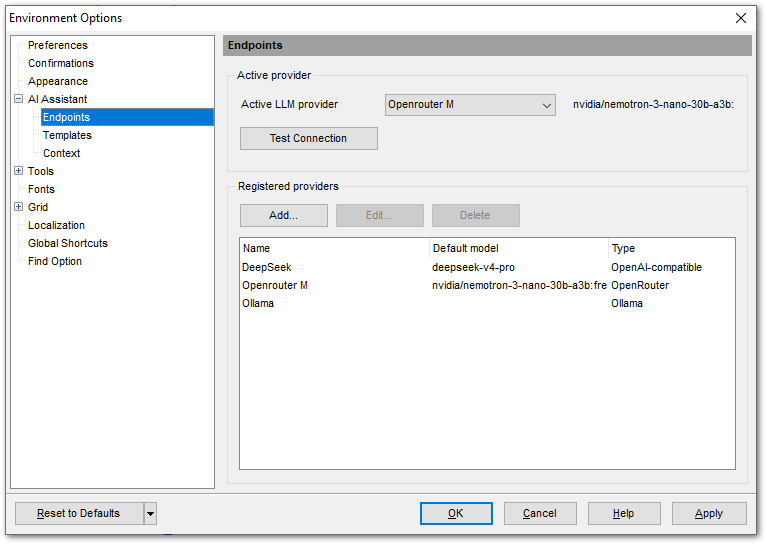
On the Endpoints tab, add the LLM providers that the AI Assistant works with and select the one it will use.
Note: SQL Manager for PostgreSQL does not come with a model of its own — the assistant works through your own provider account or a locally installed model.
Active provider
The Active LLM provider drop-down list shows all the registered providers. The provider's default model is displayed to the right of the list.
Click Test Connection to check the connection to the selected provider.
Registered providers
This group lets you register new LLM providers and manage the ones you have already added. You can register several providers and switch between them with the Active LLM provider drop-down list.
For each provider you can see its Name, Default model and Type.
To register a new LLM provider, click Add... and set the required options in the Add Endpoint window.
To edit the options of a registered provider, select it and click Edit...
To remove a registered provider, select it, click Delete and confirm the deletion.
The Add / Edit Endpoint window
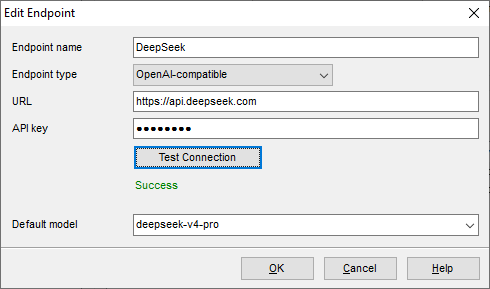
In the Endpoint name field, type a name for the provider. The name must be unique among the registered providers.
In the Endpoint type drop-down list, select the provider type:
- Ollama — a model installed locally.
- OpenRouter — the OpenRouter service.
- OpenAI-compatible — any service that implements the OpenAI API, including an instance of LM Studio or vLLM deployed on your network.
- Anthropic — the Anthropic service.
The URL field specifies the address of the provider API. When you select a provider type, the field is filled in with a default address: http://localhost:11434 for Ollama and https://api.openai.com/v1 for OpenAI-compatible; both can be edited. For OpenRouter and Anthropic the address is fixed and shown for reference only.
In the API key field, enter the access key for the provider API. The value is masked as you type, and when you open the window again, the field shows placeholder characters instead.
API keys are encrypted with the Windows Data Protection API, which ties them to the current user account on the current computer.
The Save Settings wizard exports registered providers only if the AI provider endpoints check box is selected; by default it is cleared. Even then, the keys are unreadable on another computer or under a different account, so after importing such a file you will need to enter them again.
The Test Connection button verifies the connection and retrieves the list of available models from the provider.
The list of models becomes available after a successful connection test: use the Default model field to select the model for this provider, or type its name.
See also: