

Online Documentation for SQL Manager for PostgreSQL
DDL to files
The DDL to Files section of the Database Registration Info dialog allows you to set options for saving database object definitions to files.
Saving object definitions to files allows you to use external tools for processing database scripts or use version control systems to store them.
To launch the Database Registration Info dialog with the DDL to Files tab open, use the Tools | DDL to Files |  Options main menu item, or right-click the database alias in the DB Explorer tree and select the Tasks | DDL to Files | Options item of the context menu.
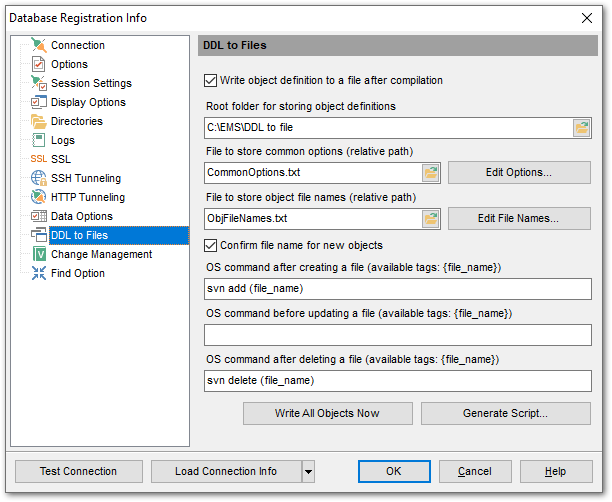
 Write object definition to a file after compilation
Check this option if you want to save object DDL after changing their definitions and subsequent compilation.
Root folder for storing object definitions
Use the  button to select the directory for storing files with object DDL. For this data to be under version control, this directory must be a working copy.
File to store common options (relative path)
Enter the name of a *.txt file that will contain the list of object types whose definitions should be stored in files. This file also contains templates of object file names.
Note: If you do not provide the full path to the file, it is stored in the directory defined in the Root folder for storing object definitions field. To select another location, use the button.
Click the Edit Options button to select object types and set templates for file names in the Options for Storing Object Definitions dialog.
File to store object file names (relative path)
Enter the name of a *.txt file that will contain object names and file names corresponding to those objects.
Note: If you do not provide the full path to the file, it is stored in the directory defined in the Root folder for storing object definitions field. To select another location, use the button.
Click the Edit File Names button to set file names in the Object File Names dialog.
Confirm file name for new objects
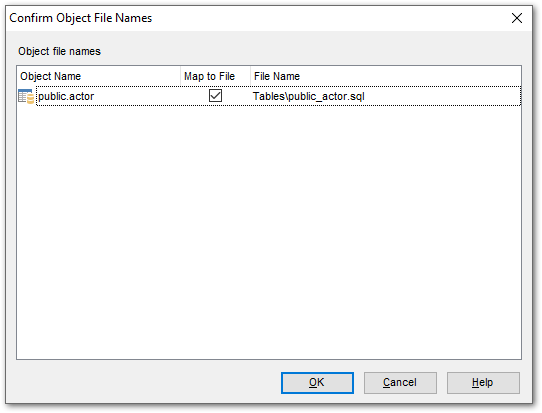
If this option is checked, then you will be asked to set a file name for a newly created object in the Confirm Object File Names dialog. The file name for a new object is generated automatically based on defined templates but you can change it if needed.
The following fields can be used to work with version control systems.
OS command after creating a file
Enter any command that will be executed after a file with an object definition is created.
If you are using a version control system, for example, the following command can be entered: svn add {file_name} (for Subversion revision control system), where {file_name} represents the name of the newly created file.
OS command before updating a file
Enter any command that will be executed before a file with an object definition is updated.
If you are using a version control system, for example, the following command can be entered: ss checkout {file_name} -C- (for Visual Source Safe revision control system), where {file_name} represents the name of the file being updated.
OS command after deleting a file
Enter any command that will be executed after a file with an object definition is deleted.
If you are using a version control system, for example, the following command can be entered: svn del {file_name} (for Subversion revision control system), where {file_name} represents the name of the file being deleted.
Click the Write All Objects Now button to immediately save definitions of all selected objects to the respective files specified in the Object file names dialog. The content of existing files will be updated.
Click the Generate Script... button to create an *.sql file containing definitions of all objects. The order of object definitions is the same as in the Object file names dialog.