

Online Documentation for EMS SQL Management Studio for Oracle
Managing scheduled tasks
The Task Scheduler allows you to manage your custom tasks configured for scheduled execution.
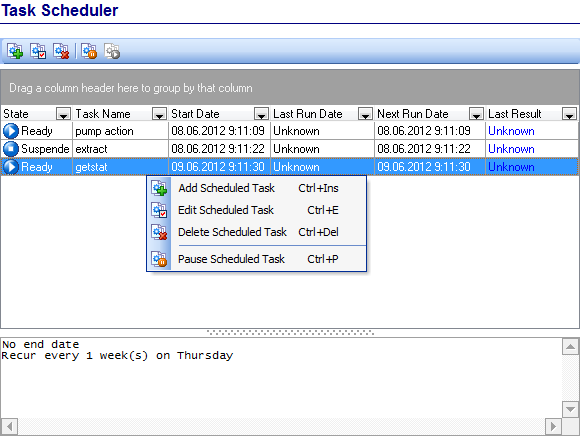
The list displays the existing scheduled tasks in a grid with the following columns: State, Task Name, Start Date, Last Run Date, Next Run Date, Last Result.
If necessary, you can filter and group the data in the grid by any of the columns. The grouping operation is performed by dragging the column header to the gray "Group by" box area at the top. When grouping by a column is applied to the grid, all the rows are displayed as subnodes under the grouping row. To reverse grouping, just drag the column header back to the grid.
Right-click an item within the list to call the context menu allowing you to add a new scheduled task and specify its properties using the Schedule Editor dialog, edit the selected task, delete the task or pause/resume the task that is currently ready/suspended.
You can also use the toolbar buttons to add  /edit
/edit  , pause
  /resume
  , or delete
  an existing scheduled task.
In the Status area at the bottom of the Task Scheduler window you can find brief information about the currently selected task.
If more convenient, you can use SQL Studio Agent to suspend/launch tasks. Right-click its icon in the system tray area, then select the Suspend Scheduled Task submenu and choose the task you need. The reverse action is performed in the same way.
Hint: Ready/suspended/launched tasks are distinguished in the Task Scheduler list by their icons in the State column.
|
See also: |

































































