

Online Documentation for EMS SQL Management Studio for Oracle
Using Schedule Editor
The Schedule Editor opens automatically when you create a new scheduled task or edit an existing one.
To create a task for delayed execution, please select the task to schedule. If you edit an existing task, you may need to select a different task for the current schedule. Use the Task name field of the Schedule Editor dialog to select the task in both cases.
When  Suspended checkbox is selected, the task is put into a suspended state and will not execute according to its schedule. You can resume it at any time by clearing this checkbox.
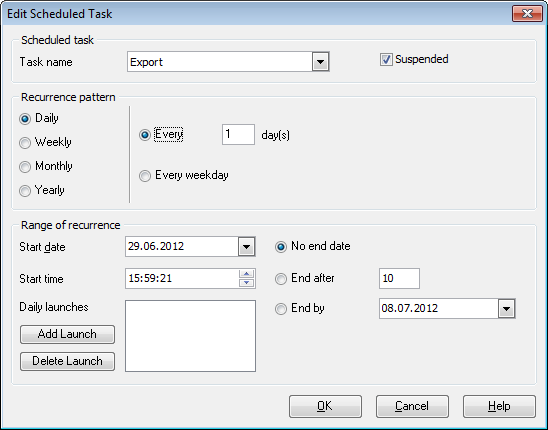
Next, define the recurrence pattern for task execution:
 Daily
Daily
Weekly
Monthly
Yearly
Daily
You can set the task to run Every X day(s) or Every weekday (i.e. except weekend days).
Weekly
The recurrence pattern allows you to schedule the task to run on a specified day of the week (Monday, Tuesday, Wednesday, etc. - check the corresponding box) every X week(s).
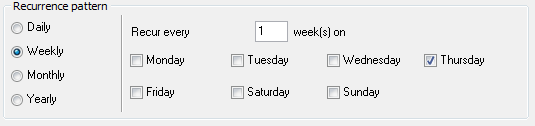
For example, if you set the task to run 'Every 3 weeks on Tuesday', the task will be executed exactly on Tuesday once every three weeks.
Monthly
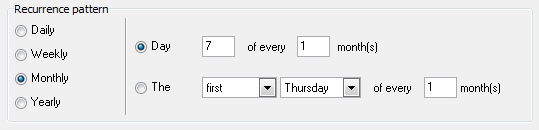
You can schedule the task to run on a specific day of every X month(s), or you can run the task on a certain day of a specific week (e.g., the first Sunday) of every X month(s).
Yearly
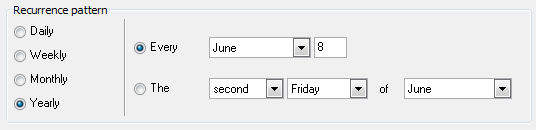
You can schedule the task to run on a certain day of a specific month (e.g., on June 14). Alternatively, you can run the task on the first/second/.../last day of the week of a specific month (e.g., on the second Wednesday of April).
Range of recurrence
Here you should specify the starting and ending points of the task execution period. Specify Start date and Start time and then set the end date for the recurrence range.
No end date
If this option is selected, the task will be executed perpetually, unless it is deleted/modified.
End after...
This option specifies that the task will run only X times.
End by ...
This option specifies the exact date as the end of the recurrence range.
Daytime launches
Use the Add Launch and the Delete Launch buttons to add/remove one or more daytime points for the task execution.
|
See also: |

































































