

Online Documentation for EMS SQL Management Studio for Oracle
Managing tasks and task steps
The Custom Tasks section allows you to manage your tasks and task steps efficiently.
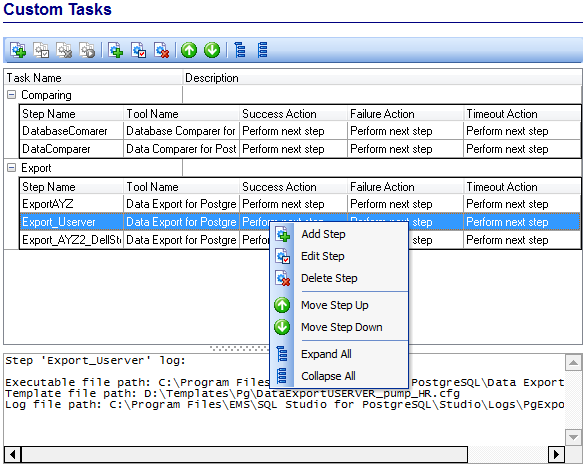
The list displays the existing tasks as a grid with the following columns: Task Name, Description.
Right-click an item within the list to open the context menu, which lets you add a new task and specify its properties using the Task Editor dialog, edit the selected task, delete the task or launch the custom task.
A custom task can be scheduled or executed directly. To perform an immediate launch of a task, select it and click the corresponding button on the toolbar (or use the corresponding context menu item).
If necessary, you can quickly expand and collapse the list of task steps. Use the Expand All / Collapse All context menu items for this purpose.
You can also use the toolbar buttons to add  /edit
/edit  / delete
  a task or task step, launch
  a task, move step up
  / down
  , expand
  / collapse
  all task steps, export
  / import
  tasks, steps and scheduler.
In the Status area at the bottom of the Custom Tasks window, you can find brief information about the currently selected task. It includes the list of task steps, tools involved, further actions on successful task execution and other useful remarks.
If more convenient, you can use SQL Studio Agent to launch tasks. Right-click its icon in the system tray area, then select the Execute Custom Task submenu and choose the task you need.
|
See also: |

































































