
Online Documentation for EMS SQL Management Studio for MySQL
Managing logs
To make it easier to control the task execution process or browse its results, the Logs section is provided. Use the log preview to save time and take advantage of the powerful filtering and sorting options available in the grid.
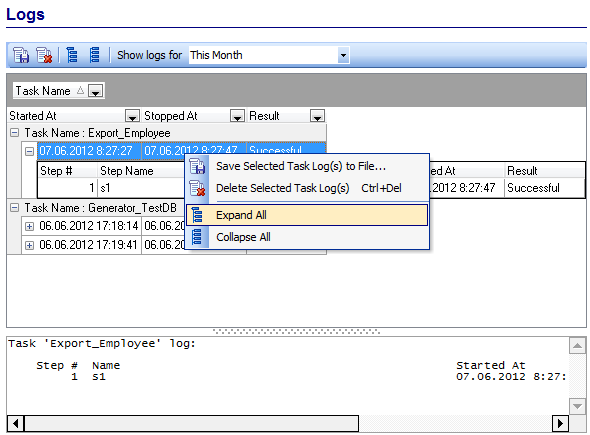
The "Show logs for" drop-down list allows you to filter task logs according to the selected period (All sessions, Today, This week, This month, Last week, Last month, Last 10 days, Last 30 days).
The list displays the task logs in a grid with the following columns: Task Name, Started at, Stopped at, Result.
If necessary, you can filter and group the data in the grid by any of the columns. The grouping operation is performed by dragging the column header to the gray "Group by" box area at the top. When grouping by a column is applied to the grid, all the rows are displayed as subnodes under the grouping row. To reverse grouping, just drag the column header back to the grid.
Right-click an item within the list to call the context menu allowing you to save or delete the selected task log, expand/collapse the step logs.
You can also use the toolbar buttons to save  /delete
  a task log, expand
  / collapse
  items in the list.
In the Status area at the bottom of the Log Viewer window you can find brief information about the currently selected task log. Depending on the log options that are set, a log may contain all data from the utility screen, data from the utility log file, or both. The verbose options are set during the step creation process (see Using Step Editor).
|
See also: |