

Online Documentation for EMS SQL Management Studio for PostgreSQL
Setting notifications
The Notifications tab of the Task Editor lets you set an optional notification of successful and failed task execution. This ability allows you to be informed about each task execution. You can choose between net send, system application log and e-mail notifications.
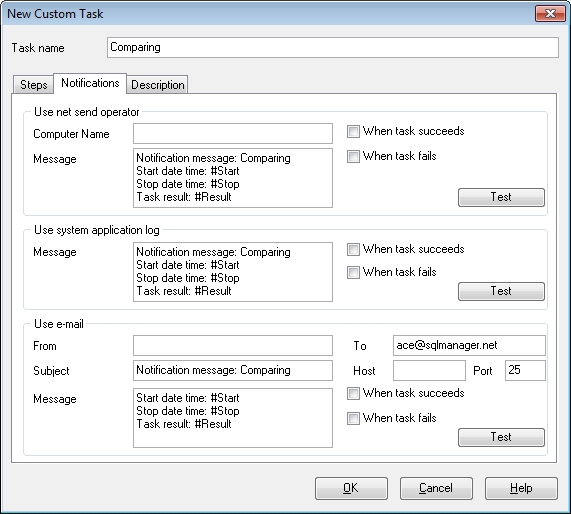
Use net send operator
Allows you to send notifications via net send. Enter the message to be sent to a remote computer in the corresponding editor field.
Note that you must have Messenger service running in order to use this type of notifications (Windows Control Panel | Administrative Tools | Services | Messenger).
Use system application log
Allows you to write notifications directly into the system log. Enter the message to be written to the system application log in the corresponding editor field.
Note that in order to view system application log you should open Windows Control Panel | Administrative Tools | Event Viewer | Application.
Use e-mail
Allows you to send notifications via email. You should enter the recipient's email address, subject, and message in the corresponding editor.
For proper email notification delivery, please make sure that you have configured the options for the outgoing mail server in the corresponding tab of the Options dialog (Options | Environment options).
Note: You can also use macronames (#START, #STOP, #RESULT) in the text of e-mail notification:
#START is the actual time when task started;
#STOP stands for the time of task finish;
#RESULT reports task result.
Two options for sending notifications are available:  When task succeeds and When task fails.
The Test button allows you to check the notification settings by sending a test message immediately.