
 AI ASSISTANT
Write, explain, and fix SQL with the AI Assistant built into SQL Manager
And always stay in control of exactly what gets sent to the model — down to the individual database object.
The AI Assistant can interact with SQL Manager's editors. Describe your task in words and get a ready-made query. Can't make sense of someone else's query? Ask for an explanation. A query failed — fix it with one click. All without leaving the application.
The AI Assistant feature is included in the SQL Manager license. You must provide your own API key.
Benefits
01
Works right where you write your queries
Contextual AI Assistant commands are available in every SQL Manager editor, in the execution plan viewer, and in the database object tree. Interacting with the AI Assistant takes just one click.
02
You see the full context
Everything that gets sent to the model is shown as chips before sending — and remains in the dialogue feed afterward. A token counter sits alongside. Anything unnecessary can be removed before sending.
03
Your model, your keys
Any OpenAI-compatible provider, Anthropic, OpenRouter — or a local model that runs entirely inside your network. No middlemen on our side, and no markup on top of provider pricing.
What you can delegate to the assistant
Describe your task in words — get a query
Explain in plain text what data you need, attach the structure of the relevant tables — and get a ready-made SQL query. No need to keep the quirks of your SQL server's dialect in your head.
Fix an error in a query
Call the assistant directly from the error message. The exact statement that caused the error will be sent to the model, along with the server's error text. In response, you'll get a corrected query with an explanation of what went wrong.
Understand someone else's query
Select a query, click "Explain" — and get a breakdown of what each part of the query does and why the result looks the way it does. From there, you can continue asking follow-up questions in the dialogue.
Speed up a slow query
In the editor, the "Optimize" command will rewrite a heavy query. And from the execution plan viewer, you can send the plan itself to the assistant — it will point out bottlenecks and suggest indexes.
Clean up a query
The assistant will format a working but unreadable query without changing its logic.
Not just the SQL editor
The same actions are available in the editors for views, procedures, functions, and triggers. And if a metadata change operation fails, you can troubleshoot it right from the Changing Metadata window.
How it works
Describe your product's business requirements and get a data schema
Add your database schema to the context and describe the new business requirements in any form — as text or a file. The AI Assistant will suggest schema changes that you can discuss right away.
With one click, transfer the schema-change script to the code editor and run it. Your database is ready to work with the updated version of the product!
Compare two (or more) databases
Add the schemas of the databases you want to compare, then ask the AI Assistant to find the differences. You'll receive a table listing the objects that differ, along with the specific discrepancies for each one.
Then ask the assistant to write a migration script that brings database A in line with database B. All that's left is to transfer it to the editor and run it. The schemas are now in sync!
Slow query? No problem!
A heavy query can be optimized right from the code editor — in one click, with the "Optimize" command. The AI Assistant will analyze the query, provide recommendations for improvement, and suggest a ready-made solution.
For even more precise recommendations, ask the assistant to evaluate the query's execution plan in the plan viewer.
Describe the data you need and get a ready-made query
Describe in any form what data the query should return, along with the required filters and groupings. Add the schemas of the relevant objects — or the schema of the entire database — to the context, and get a ready-made query.
All that's left is to transfer it to the editor with one click and run it. Need edits? Just continue the conversation until you get the result you want.
Need to make edits to a complex query that someone else wrote?
The AI Assistant will quickly explain what the query is made up of, where it pulls data from, how it processes it, and what it returns as a result.
Describe in your own words what needs to be changed, and instantly get a new version — ready to test in the editor.
You decide what the model sees
The key question for any AI assistant in a database tool is exactly what it sends out. We answer that not with a promise in the documentation, but with what's visible on screen.
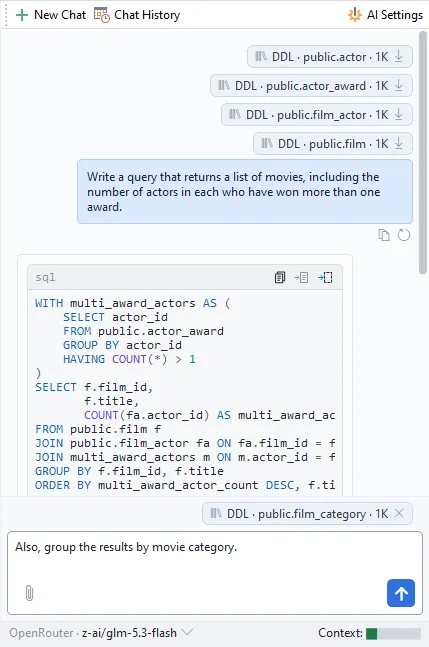
Context is visible before sending
Every fragment that will be sent along with the prompt is shown as a separate chip: a selected query, an object's DDL, an execution plan, an attached file. Before sending, you can always remove any unnecessary chip. This keeps the prompt short and readable.
Context is visible after sending
In the dialogue feed, the same chips remain next to each message. Any of them can be saved to a file.
Choice — down to the individual object
You decide exactly what goes into the context: one or several tables, all objects in a schema, or an arbitrary text file. For large schemas, you can narrow the snapshot down in the settings: which object types to include, and how much detail to capture for each. That keeps the context within a reasonable size.
Volume under control
The token counter in the assistant panel shows the current context size and warns you as you approach a set threshold. Each chip displays its own estimated token count.
Your code won't change without your knowledge
When the assistant's response replaces code in the editor, a "before → after" window opens first. The replacement only happens after confirmation, and it can always be undone with Ctrl+Z.
What the assistant doesn't do
A metadata snapshot contains structure only — table and column definitions, never the rows themselves. Nothing goes to the model unless you attach it yourself. And the assistant doesn't execute queries: the decision of what to run and when always remains yours.
On your terms
■
Any provider. Anthropic, OpenRouter, and any OpenAI-compatible service. Configure as many providers as you like, switch between them, and change the model right in the assistant panel — without interrupting your work.
■
Fully offline. Ollama, LM Studio, vLLM — via an OpenAI-compatible endpoint. Data never leaves your network, and there are no bills from a provider.
■
Keys stored encrypted. API keys are protected using the Windows Data Protection API (DPAPI) and are never stored in configuration files in plain text. When exporting settings, you can choose not to export endpoints along with the keys.
■
No servers of ours in the middle. Requests go directly from SQL Manager to the provider you've chosen. EMS doesn't proxy traffic, doesn't store your conversations, and doesn't collect usage telemetry — whether personalized or anonymized.
■
Conversation history stays local. Your correspondence is stored on your computer. You can set a retention period and enable automatic cleanup on program startup; the entire history can be deleted with one click.
■
The assistant adapts to you. Template prompts for "explain," "optimize," "fix error," and "evaluate plan" can be rewritten as you see fit. The response language is set separately from the interface language.
How it differs from a typical AI assistant
| How it's usually done | SQL Manager AI Assistant | |
|---|---|---|
| What gets sent to the model | No: The model decides on its own, or the whole database gets attached | Yes: Visible as chips before and after sending, down to the individual object |
| Context size | No: Trimmed automatically and invisibly | Yes: Token counter, plus control over which object types go into the snapshot |
| Replacing code in the editor | No: Pasted over the selection, with no preview | Yes: A "before → after" window with confirmation |
| Model choice | No: A single provider, hard-coded by the vendor | Yes: As many providers as you like, switch models right in the panel |
| Offline operation | No: Not always available | Yes: Via a local model |
| Provider API keys | No: Stored in settings in plain text | Yes: Encrypted using DPAPI |
Setup takes just a couple of minutes
Choose a provider
Add an endpoint in the assistant settings — a cloud service or the address of a local model.
Enter your API key and check the connection
The "Check connection" button makes a test call and returns a human-readable message. No key is needed for a local model.
Start working
The AI Assistant panel is open by default. Ask questions, get answers!
The AI Assistant is also available in the trial version — try it out before you buy.
FAQ
No. The AI Assistant is included in the SQL Manager license — there's no separate AI subscription on our side.
Yes. You connect your own provider and pay them directly, with no markup and no middleman on our side. Or you can use your own local model — then you don't pay anyone.
Yes. Connect a local model through Ollama, LM Studio or vLLM via an OpenAI-compatible endpoint — your data never leaves your network. Smaller local models handle explaining and formatting queries well; for schema design and optimization, a larger model usually gives better results.
Only what you've explicitly put into the context: selected SQL, the DDL of the objects you picked, an execution plan, a text file. You can see exactly what's included as chips before sending, and remove any chip you don't need. The assistant never sends rows from your tables.
Locally, and always encrypted — using the Windows Data Protection API (DPAPI). The key is never written to a configuration file in plain text. Because DPAPI ties encryption to your Windows account, keys don't carry over to another machine or user profile — you'll need to enter them again.
Anthropic, OpenRouter, and any OpenAI-compatible service — including local models. Your provider's model list is available right in the chat window, and you can switch models mid-conversation.
No. There's no agent mode. The AI Assistant only proposes query text — what gets executed is always your decision. And when its response would replace existing code in the editor, a confirmation window opens first.
No. Conversation history is kept only on your own computer. You can set a retention period, and clear the history automatically on startup or manually at any time. Requests go straight from SQL Manager to your provider — they don't pass through EMS at all.
No. No telemetry of any kind — not even anonymous or opt-in.
No. The AI Assistant is only available in the full versions.
Yes. The assistant works in full in the free 14-day trial, with no functional limitations.
Where it's available
Try the AI Assistant on your own queries in SQL Manager for PostgreSQL
14 days, all capabilities, no functional limitations.