

Online Documentation for SQL Manager for PostgreSQL
Script execution
When all the script parameters are set, you can immediately execute the script in Execute Script Editor.
To execute a script, click the  Execute script item of the Navigation bar or toolbar. You can also use the context menu or F9 hot key for the same purpose.
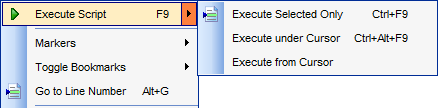
Note: If the  Execute selected text separately option (see the Tools | Execute Script section of the Environment Options dialog) is enabled (by default) and a text fragment is currently selected, only this fragment is executed when you click Execute script on the Navigation bar or press F9. If this option is disabled, the whole script is executed, but you can still execute the selected fragment using the corresponding Execute Selected Only item of the context menu or by pressing Ctrl+F9.
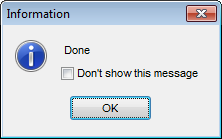
If the SQL syntax is correct, the script is executed and the 'Done!' information message appears.
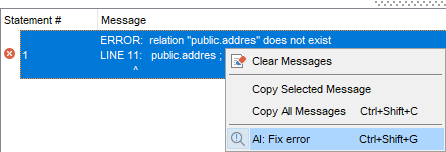
If SQL syntax contains errors or script cannot be executed, the corresponding error message is displayed in the message area at the bottom of the editor window. Right-click the message to display the context menu with the AI: Fix error command, which sends the error together with the statement that caused it to the AI Assistant and asks it to suggest a fix.
Note: Execute Script Editor does not show results returned upon SELECT queries execution. Please execute such queries in Query Data to see the result dataset.
|
See also: |