Online Documentation for SQL Manager for PostgreSQL
Managing favorite objects
Use the Favorite Objects node for each database to work with the selected objects of this database only. You can place any object from the database tree into this node.
Note: Before you can add an object to the Favorite Objects node, you must first create a folder within the corresponding database node.
You can also create a separate tab for your favorite object folder. See Using tabs for database navigation section for details.
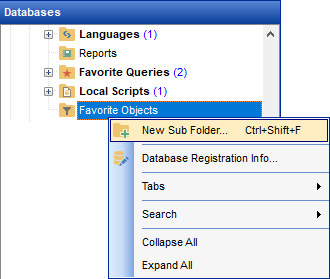
Creating favorite objects folders
To create a new folder:
- right-click the Favorite Objects node;
- select the New Sub Folder... context menu item;
- in the New Folder dialog, enter a name for the folder.
You can also create subfolders inside other folders to build a nested hierarchy.
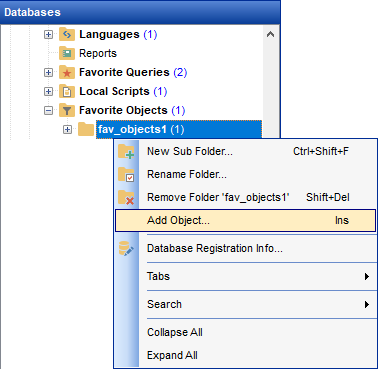
Adding objects
You can add objects to the Favorite Objects folder using any of the following methods:
- expand the Favorite Objects node in the DB Explorer;
- drag one or multiple objects from the database tree and drop them onto the folder.
or
- right-click the favorite objects folder and select the Add Object... context menu item, or use the Ins key;
- use the Select Object dialog to specify objects to be added to the favorite objects folder.
Removing objects from the favorite objects
To remove an object from the favorite objects:
- right-click the object and select the Remove <object_name> from Favorite Objects context menu item;
- confirm removing in the dialog window.
Note: This operation removes only the alias from the Favorite Objects tree. It does not drop the object from the database.