
Online Documentation for EMS SQL Management Studio for InterBase/Firebird
Using Step Editor
The Step Editor opens automatically when you create a new step or edit an existing one.
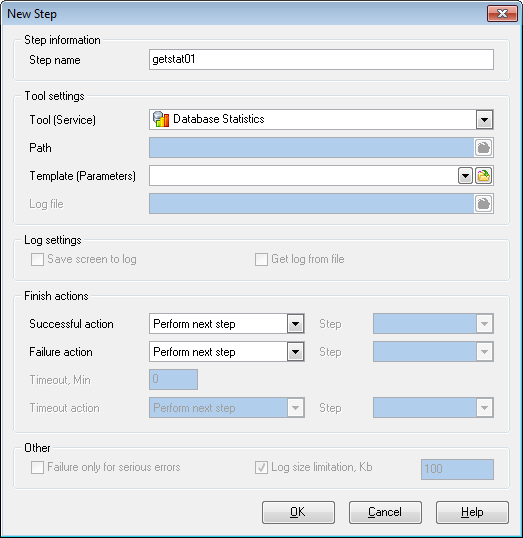
Step information
Step name
Set or modify the name for the task step.
Tool settings
Use the drop-down list to select a tool (service), specify its path, enter the path to the template file and select the location of the log file using the corresponding fields.
You can add a date and time to the log file name, the format of which can be configured using Format specifiers.
Log settings
Here you can specify how the SQL Studio log file is generated.
 Save screen to log
Enables saving all data from the utility screen to SQL Studio log file.
Get log from file
Enables usage of the utility log file; all the data contained in it will be saved to SQL Studio log file.
Finish actions
Set successful and unsuccessful finish actions. You can choose to proceed to the next step or to a specified one, end the task with the report of its successful or unsuccessful execution. Step Editor also provides timeout handling. You can set the desired timeout time and the action after the timeout expires.
To perform any of the actions listed above, use the appropriate boxes of the Step Editor.
Other
Failure only for serious errors
This option makes the task report successful completion if minor errors (e.g. extract script was executed with some errors) occurred during the utility running.
Log size limitation
Check this option to limit the log file size for the current step and set a preferred value in the edit box.

































































