Online Documentation for SQL Manager for InterBase/Firebird
Using tabs for database navigation
To make your work with Database Explorer even more convenient, the capability of working with several tabs is implemented.
You can use tabs when you wish to work with a particular node of the DB Explorer tree only: with a group of objects, or with a specific database Favorite Objects folder. Creating such tabs will minimize scrolling within large trees, you only need to switch between them with a single click on the corresponding tab.
Creating tabs
In order to create a new tab:
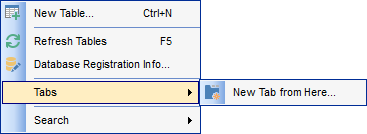
- right-click the node (e.g. the Tables node) for which you wish to create a tab and select the New Tab from Here... context menu item.
Note: A tab can be created only on the basis of a tree node. For example, if the Show Table Subobjects option is disabled in the View Mode menu, the New Tab from Here... item will not be available for tables, since none of them will be a tree node anymore.
The specified tabs can be displayed in either of the two views:
- as icons on the lower pane of DB Explorer:

- as tabs with captions:
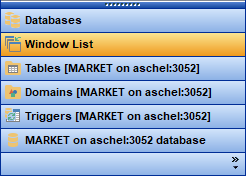
Hint: You can reorder items in the tabs view by dragging their captions up and down.
To add/remove items to/from the tabs view, you can drag the horizontal splitter up/down:

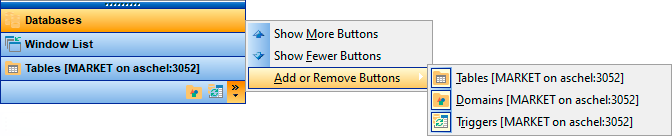
or click the Configure buttons icon available in the bottom right corner of the DB Explorer window, and select Show More Buttons / Show Fewer Buttons / Add or Remove Buttons items from the popup menu.
Note: Navigation through the tabs is also possible with the help of the following shortcuts:
- Ctrl+Shift+N - move to the next tab;
- Ctrl+Shift+P - move to the previous tab.
Renaming tabs
In order to rename a tab:
- switch to the tab by clicking its caption or icon (there can be only one active tab, and it is highlighted with a different color);
- right-click within the DB Explorer area and select the Rename Current Tab... context menu item.
Removing tabs
In order to remove a tab:
- switch to the tab by clicking its caption or icon (there can be only one active tab, and it is highlighted with a different color);
- right-click within the DB Explorer area and select the Delete Current Tab context menu item.