Online Documentation for SQL Manager for InterBase/Firebird
Managing favorite objects
Use the Favorite Objects node for each database to work with the selected objects of this database only. You can place any object from the database tree here.
You can also create a separate tab for your project. See Using tabs for database navigation section for details.
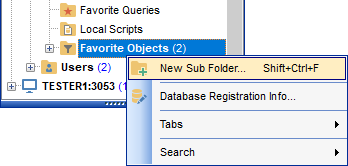
Creating favorite objects folders
In order to create a new folder:
- create a folder (if necessary, you can create subfolders inside the project folder) by right-clicking the Projects node and selecting the New Sub Folder... context menu item;
- enter the folder name within the New Folder dialog.
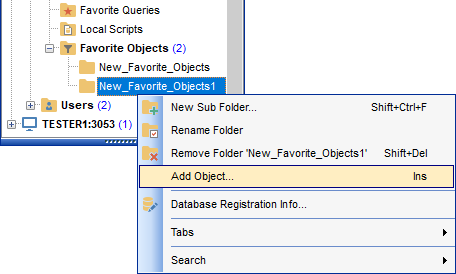
Adding objects
In order to add a new object to the folder:
- extent the Favorite Objects node in DB Explorer;
- drag an object (or multiple objects) from the database tree to the project folder
or
- right-click the project folder and select the Add Object... context menu item, or use the Ins key;
- use the Select Object dialog to specify objects to be added to the project folder.
Removing objects from the folder
In order to remove an object from the folder:
- right-click the object and select the Remove <object_name> from Favorite Objects context menu item, or use the Shift+Ctrl+Del shortcut;
- confirm removing in the dialog window.
Note: This operation does not drop the object from the database, but only removes its alias from the project tree.