
Online Documentation for EMS SQL Management Studio for PostgreSQL
Using Task Editor
The Task Editor opens automatically when you create a new task or edit an existing one.
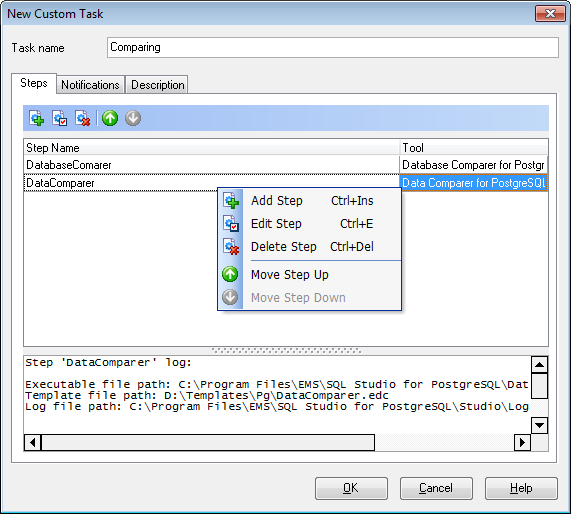
First of all, you need to set a name for the new task, or you can modify the name if the task is being edited.
Task properties provided by the Task Editor are available within the following tabs:
- Steps
- Notifications
- Description
The Steps tab allows you to specify the steps required for the task (every task consists of several steps that must be executed in a specific order).
You can  add a new step,
  edit or
  delete an existing one with the help of the corresponding context menu items or using the toolbar buttons.
Besides, you can change the step execution order by using the  Move Step Up and
  Move Step Down buttons on the toolbar. The same ability is provided by the context menu of the Task Editor.
For more details, see Using Step Editor.
In the Status area at the bottom of the Task Editor window, you can find brief information about the currently selected task step. It includes the path to the executable file, the template file path, the log file path, further actions on successful step execution and misc.
The Notifications tab allows you to be informed about the results of task execution (in addition to SQL Studio Logs): you can set an optional notification.
For more details, see Setting notifications.
You can enter any text as a description for your task. If necessary, you can make your remarks on the Description tab of the Task Editor.
|
See also: |