

Online Documentation for EMS SQL Management Studio for Oracle
Customizing menus and toolbars
You can customize the Main toolbar and the DB Explorer toolbar.
To do this, click the down-arrow button at the right-side of any toolbar, then click Add or Remove Buttons 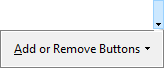 . In the pop-up window, choose which buttons to display on the toolbar.
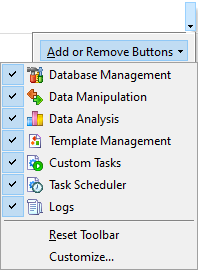
By clicking Customize..., you can also call the Customize Toolbars window, which allows you to select the buttons displayed on the SQL Management Studio for Oracle toolbars and change their positions.
To restore the selected toolbar to its default settings, click the Reset Toolbar button.
Toolbars
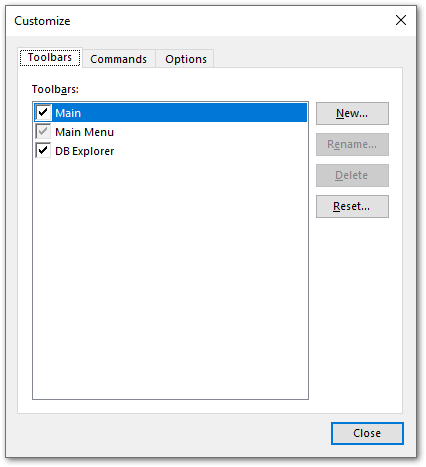
This tab allows you to create, edit, delete and reset toolbars. Click a box near the toolbar name to show or hide the toolbar.
New
Adds a new toolbar to the toolbar list and to the parent window.
Rename
Renames a user-created toolbar.
Delete
Deletes a user-created toolbar.
Reset
Restores the selected toolbar to its default settings.
Note that any toolbar can be moved and docked to any side of SQL Studio window which is convenient for you.
Commands
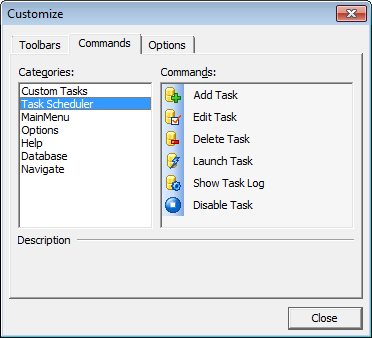
This tab allows you to view the list of all the commands available within toolbars of the parent window. Selecting a category in the Categories list box displays the commands of that category (e.g. 'Register Database' or 'Unregister Database') in the Commands list box. You can pick a command and drag it onto any parent window toolbar to create a button for that command.
Options
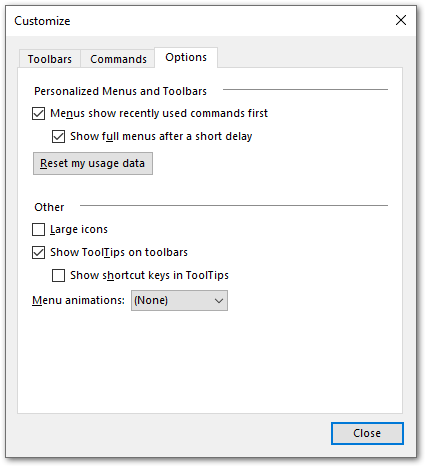
Menus show recently used commands first
With this option on, the parent window menus drop down showing only several items available that have been used recently. To display full menus unselect this option.
Show full menus after a short delay
This option is available only if Menus show recently used commands first is enabled. It displays full menus after a few seconds of showing only recent items.
Reset my usage data
Resets the lists of recently used commands in the toolbars and menus.
Large Icons
Displays larger icons on the parent window toolbars.
Show ToolTips on toolbars
Displays navigation tips for toolbar buttons.
Show shortcut keys in ToolTips
Shows shortcuts in button tips for faster activation of the corresponding commands.
Menu animations
Select how menus appear in the parent window (None, Random, Unfold, Slide, Fade).
|
See also: |

































































