

Online Documentation for EMS SQL Management Studio for Oracle
Using DB Explorer
Database Explorer (or DB Explorer) is the basic window of SQL Studio for navigation within registered hosts and databases. The tree-like structure of DB Explorer allows you to manage the hosts and databases and perform everyday operations quickly and easily.
To activate/deactivate DB Explorer, you can use the corresponding View | Navigation bar | Explorer item of the main menu.
By default, DB Explorer is located below the Navigation bar in the lower-left area of SQL Studio window. DB Explorer displays all registered hosts and databases; with its help you can add and remove items to/from the Explorer tree, browse registration information of databases and start Oracle services for selected databases. Single registered database repository allows you to use database registration information in all utilities integrated in SQL Management Studio for Oracle.
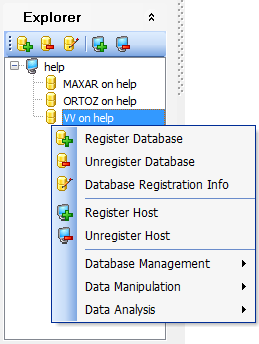
To add a database to the DB Explorer tree, select the Database | Register Database item of the main menu or use the corresponding item of the context menu. If more convenient, you can use the  Register Database toolbar button.
To remove a database from the DB Explorer tree, select the Database | Unregister Database item of the main menu or use the corresponding item of the context menu. If more convenient, you can use the  Unregister Database toolbar button.
To view database registration info, select the Database | Database Registration Info item of the main menu or use the corresponding item of the context menu. If more convenient, you can use the  Database Registration Info toolbar button.
|
See also: |

































































