

Online Documentation for EMS SQL Management Studio for Oracle
First time started
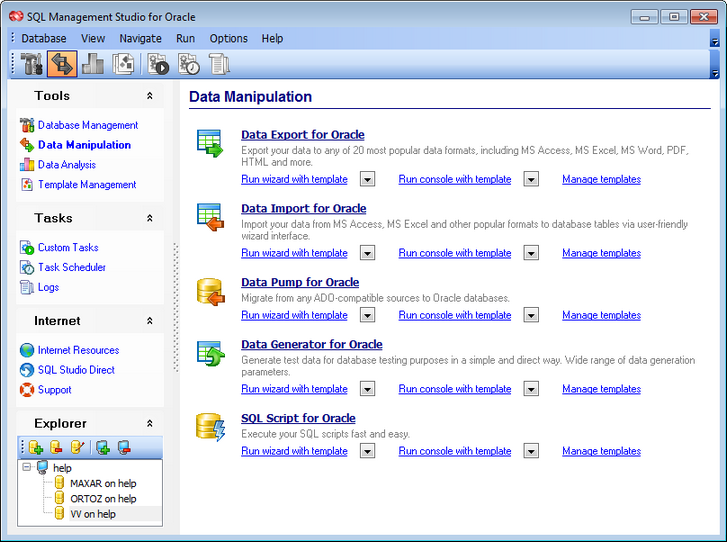
This is how SQL Management Studio for Oracle looks when you start it for the first time. Use the Desktop panel to perform any database management task, or start a utility.
The main menu allows you to perform various Database operations, activate/deactivate toolbars, Navigation bar panes and tool descriptions within the View menu, access SQL Studio tools in groups using items of the Navigate menu, run any Studio tool using the Run menu, customize the application using the Options menu, access Registration information and product documentation using the corresponding items available within the Help menu.
The Navigation bar on the left allows you to switch between activities in the following groups:
 Tools
Tools
Tasks
Internet
The main toolbar duplicates the items of the Navigation bar and is implemented for quick access to SQL Studio activities.
To start working with your Oracle, you should first register the database using the Register Database Wizard.
By default the corresponding  Unregister Host,
  Register /
  Unregister Database,
  Database Registration Info buttons are available on the toolbar of DB Explorer and within the Database menu.
DB Explorer which is located below the Navigation bar displays all registered hosts and databases; you can add and remove items to/from the Explorer tree, browse registration information on databases and start Oracle services for selected databases. You can also use this database registration information in utilities integrated into SQL Management Studio for Oracle.
After specifying your database connection settings, you can connect to your database and explore Database Management & Manipulation, Scheduling & Performing tasks, and other tools within SQL Studio.
|
See also: |

































































