Online Documentation for DB Comparer for MySQL
Set comparison options for the project.
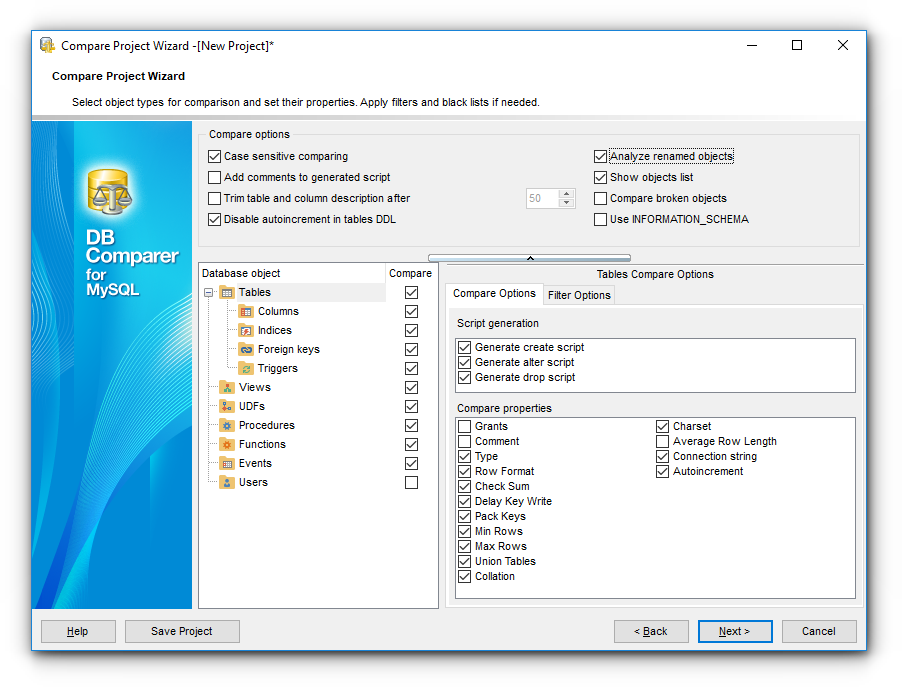
 Case sensitive comparing
Enable this option to make the comparing process case sensitive.
Note that you can use a Case sensitive filter as well, just turn on the corresponding option.
Compare broken objects
Enable this option to allow the utility to compare broken or invalid objects.
Use INFORMATION_SCHEMA
If this option is checked then metadata is refreshed using the INFORMATION_SCHEMA database. Otherwise, the 'mysql' database is used.
Disable autoincrement in table DDL
If this option is checked autoincrement is off in DDL statements.
This option enables/disables comparing tables and fields which might have been renamed.
Show objects list
If this option is checked the list of all objects is displayed on the next step. If there is no need to check the list of retrieved objects you can uncheck this option to speed up comparison process.
Add comments to generated script
Use this option to toggle comments in modification script.
Trim table and field description after n characters
This option enables/disables cutting off the description for tables and fields after the specified number of characters.
Select object type in the Database object tree, set a flag to include the object type into the comparison process.
The Select All and Unselect All buttons in the popup menu are implemented to make option selection easier.
Compare Options
Define which properties are compared for the selected object type.
Filter Options
For your convenience the filter of object names is added. By default, filter by mask is used. A valid mask consists of literal characters, sets, and wildcards. Each literal character must match a single character in the string. The comparison to literal characters is case-insensitive. Each set begins with an opening bracket ([) and ends with a closing bracket (]). You can use standard wildcards such as asterix (*) or percent sign (%) which are the same, or the question mark (?).
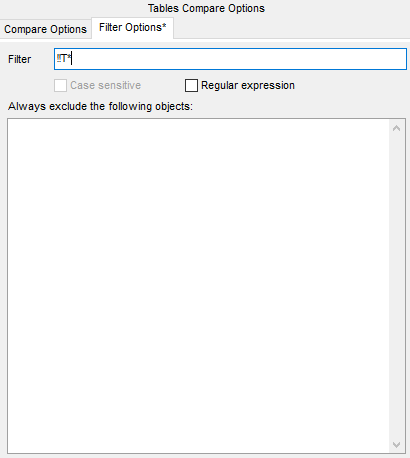
To apply filter using regular expression, check the Regular expression option.
Enable Case sensitive option to make the regular expression filter case sensitive.
Always exclude following objects
Enter the objects (one on the line) that you do not want to be compared.
To delete filter condition you may use the Clear Filter button of the Database objects popup menu.