Online Documentation for SQL Manager for InterBase/Firebird
Setting specific options
This step of the wizard allows you to set the database name, database alias, character set, and registration options (using the General and Logs tabs).
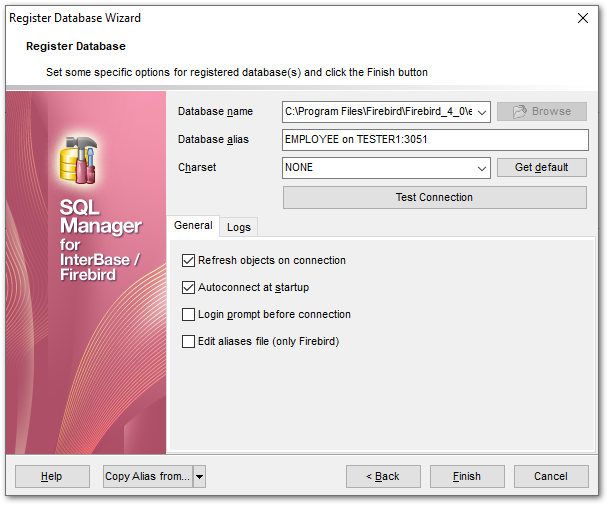
Database name
Type in or use the  Browse button to specify the path to the database file (*.gdb, *.ib for InterBase or *.fdb for Firebird). The drop-down list contains the previously specified paths.
Database alias
Enter the alias to be used to display the database in DB Explorer and SQL Manager tools. By default, a database alias generated by the application has the following format: <database_name> on <host_name_or_address>[:<port>]
Charset
Specify an active character set to use for subsequent database attachments. The Get default button applies the default character set which was specified on creation of the database.
Click Test Connection to check availability of the database at the moment. If connection is successful, you will get the 'Connected!' message; otherwise an error message will be returned.
The General tab allows you to set common database registration options:
Font charset
Specify the character set to be used to display data in the grid.
 Refresh objects on connection
This option allows you to enable/disable refreshing objects on connection to the database. It is highly recommended to uncheck this option if your database contains many objects or if connection to the database is slow.
Autoconnect at startup
With this option set, connection to the registered database is established automatically at application startup.
Login prompt before connection
Enables SQL Manager for InterBase/Firebird to prompt for user name and password each time you connect to the database.
Edit aliases file (only Firebird)
This option allows editing local Firebird server aliases file.
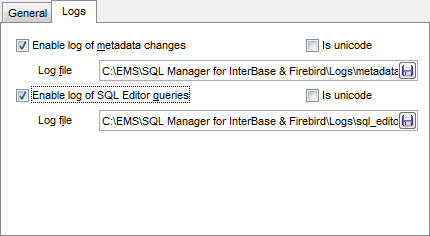
The Logs tab allows you to set log options for the database:
Enable log of metadata changes
Check this option if you wish to log metadata changes of your database in a file.
Log file
This field is enabled if the Enable log of metadata changes option is selected. Type in or use the Save as  button to specify the path to the *.sql file to store the metadata logs.
Enable log of Query Data queries
Check this option if you wish to log your Query Editor queries in a file.
Log file
This field is enabled if the Enable log of Query Data queries option is selected. Type in or use the Save as button to specify the path to the *.sql file to store the logs of SQL queries.
Is Unicode
Enable this option to save logs in Unicode. If the option is disabled, ANSI will be used.
The Copy Alias from... menu allows you to select the alias of a previously registered database and use it for the newly configured database.
Click the Finish button when done to start working with the newly registered database in SQL Manager for InterBase/Firebird.