Online Documentation for SQL Manager for DB2
Using Navigation bar and Toolbars
The Navigation bar and Toolbars provide quick access to tools implemented in Visual Database Designer.
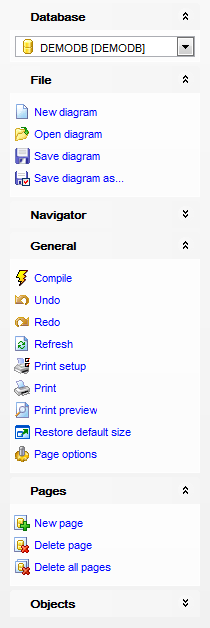
The Navigation bar of Visual Database Designer allows you to:
Database group
 select a database for building the diagram
File group
 create a new diagram
 open an existing diagram
 save the diagram
 save the diagram with the objects XML files of the VDBD project
Navigator group

General group
 compile the changes (if any)
 undo last action
 redo last action
 refresh objects in the diagram
 open the Print Setup dialog
 print the diagram
 preview the diagram
 restore the default size and position of the window
 edit diagram options
Pages group
 add a new page
 delete the current page
 delete all pages
Objects group
Here you can find objects (Tables, Views, Procedures, Functions) that were added to the diagram.
 search for objects in the diagram using the Objects panel
 perform Reverse Engineering
The Toolbars of Visual Database Designer provide quick access to most tools for working with diagrams.
To enable the toolbars, open the Environment Options dialog, proceed to the Windows section there and select  Toolbar (if you need the toolbars only) or Both (if you need both the toolbars and the Navigation bar) in the Bar style for child forms group.
The main toolbar (by default, the toolbar is located at the top of the diagram area) contains a number of tools (including items of the Navigation bar, context menu, tools for printing diagram, etc.) allowing you to:
select the database for building the diagram;
undo last action
redo last action
compile the changes (if any)
create a new diagram;
open an existing diagram;
save the current diagram to a *.dbd file;
 save the current diagram as an image;
 activate the Incremental search panel;
-
adjust diagram zoom for optimal representation:
 zoom in,
  zoom out,
  fit model;
 switch cursor mode: select / select rectangle to fit;
open the Print Setup dialog;
print the diagram;
show Print Preview;
 arrange objects in the diagram;
 extract metadata of all objects in the diagram and load the script to SQL Script Editor;
perform Reverse Engineering;
refresh objects in the diagram;
view/edit diagram options;
- specify a predefined zoom value;
The Pages toolbar (by default, the toolbar is located at the top of the diagram area) contains tools for working with diagram pages allowing you to:
add a new page;
delete the current page;
delete all pages.
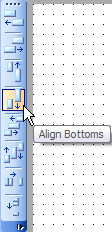
The Alignment Palette (by default, the toolbar is located on the left side of the diagram area) allows you to:
- align left/right edges of selected objects;
- align tops/bottoms of selected objects;
- align horizontal/vertical centers of selected objects;
- space selected objects equally horizontal/vertical.
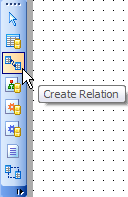
The New object toolbar (by default, the toolbar is located on the left side of the diagram area) allows you to:
- set the cursor mode to Select;
- create a new object (a table, a view, a procedure, a function, or a comment);
- create a new relation (material or virtual).
The Object customization toolbar (by default, the toolbar is located at the top of the diagram area) allows you to:

- specify a font to be applied to the text of the selected element;
- specify font size for the text of the selected element;
- toggle font attributes (bold, italic, underlined);
- define the fill colors (font color, pen color, brush color).
|
See also: |