Online Documentation for Data Generator for SQL Server
Step 1 - Setting connection properties
At this step you should enter the necessary settings to establish connection to SQL Server.
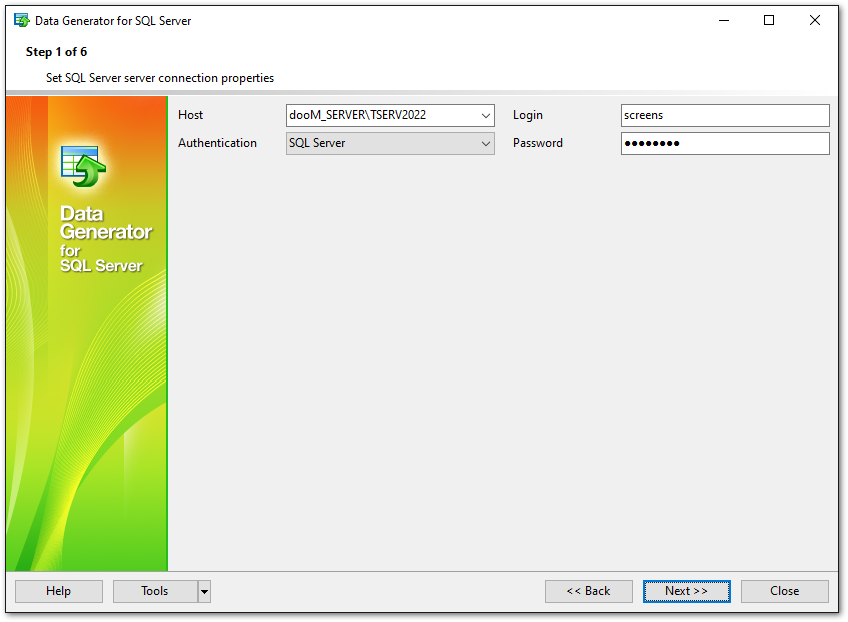
For connection you should enter SQL Server host name in the Host field.
Please note that if Microsoft® SQL Server™ is installed as a named instance, you should enter the name of your machine and the instance name in the 'Host' field in the following format: computer_name\sqlserver_instance_name (e.g. "MYCOMPUTER\SQLEXPRESS").
Authentication
Specify the type of SQL Server authentication to be used for the connection: SQL Server or Windows authentication. It is strongly recommended to avoid using SQL Server authentication with "sa" as the login.
If SQL Server has been selected as the authentication type, you should also provide authorization settings: Login and Password.
Please note that you should have sufficient privileges to write to the destination database on SQL Server.
If you are using the EMS SQL Management Studio for SQL Server version of Data Generator for SQL Server then the Select registered database button is available. Click this button to pick a database already registered in the EMS SQL Management Studio in the Select Host or Database dialog.
When you are done, press the Next button to proceed to the next step.