Online Documentation for SQL Manager for InterBase/Firebird
Setting connection parameters
Use this step of the wizard to set the necessary connection parameters for the new host using the controls available in the Server and Client areas.
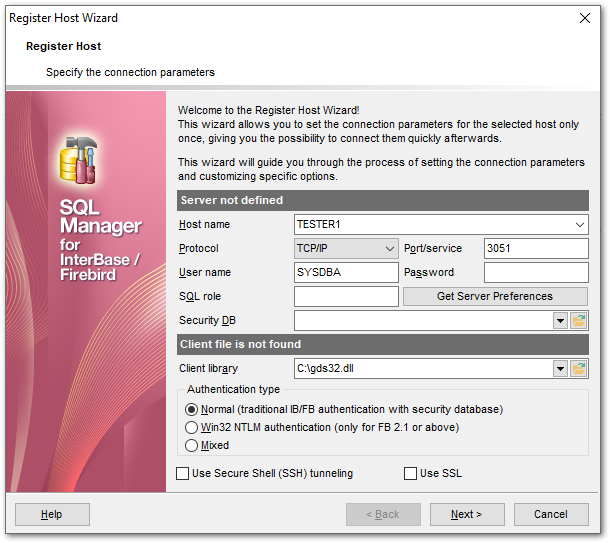
Server
In this section you need to define connection parameters.
Host name
Type in, or use the drop-down list to specify the host name of the InterBase/Firebird server.
Protocol
Use the drop-down list to select the communication protocol to be used for the connection. Possible values are: Local, TCP/IP, Novell SPX, NetBEUI, Embedded.
Port/service
Use this field to specify a port or service to connect through. By default it is "gds_db" for InterBase and port 3050 for Firebird.
Afterwards you must specify valid authorization info to access the target InterBase/Firebird server: User name and Password.
The default superuser name is 'SYSDBA' with password 'masterkey'.
You can also define the user role in SQL role field.
Pressing the Get Server Preferences button allows the program to do the following actions automatically:
- get server version (when done the version will be displayed in the title of the section);
- define security database if possible (a few servers do not allow such an operation);
- detect client library according to the server version (also shows the version in the corresponding section title) from the following folders (from all successful results the program chooses the one that best corresponds to the server version):
 the folder specified in the Client Library field;
the server home folder and subfolders (server must be local and home folder must be specified);
the root folder of SQL Manager;
the folders associated with the Path environment variable;
\Windows and \Windows\System32;
- set authentication type.
Note: This operation may take a few time if you are getting server preferences for the first time.
Authorized InterBase/Firebird users are stored in a security database. Each InterBase/Firebird server has its own security database, which means that a user definition is bound to the server where it is stored. The security database also stores an encrypted password for each user.
Type in or use the  button to specify the path to the security database. The drop-down list contains the previously specified security databases.
Client
In this section you can specify the client settings.
Client library
Client library provides the conduit between the API or object library an application uses to communicate with the DB server and the networking protocols used to exchange data with the network.
Type in or use the button to specify the path to the client library. For successful connection to the server it is crucial to use the appropriate client library - the one that is compatible with the server you are using: gds32.dll for InterBase and fbclient.dll for Firebird. Please note that the client library file must be located on your local machine (e.g. in the directory where the application is installed). The drop-down list contains the previously specified client libraries.
Hint: Automatic search for the library is performed upon pressing the Get Server Preferences button.
Authentication type
This group is only available in case you connect to Firebird 2.1 or higher. Specify the preferable type of server authentication to be used for the connection:
 Normal (traditional IB/FB authentication with security database)
The user must identify him/herself with a Firebird username and password, which the server checks against the security database. The Firebird security database is named security2.fdb. For user authentication it has a table named RDB$USERS that stores the new hashed passwords.
Win32 NTLM authentication (only FB 2.1 or above)
NTLM credentials are based on data obtained during the interactive Windows logon process. The user is automatically identified by his OS account name. In this case login name will consist of the server name that performed authentication and user name.
Mixed
The user either supplies a Firebird username and password, or is logged in with his OS account name.
Note: In Firebird 2.1, if Authentication type is Win32 NTLM or Mixed, Windows administrators automatically receive SYSDBA privileges in all databases, including the security database.
 Use Secure Shell (SSH) tunneling
Select this option to establish connection to an intermediate SSH server and forward all InterBase/Firebird commands through the secure tunnel.
If this option is checked, you should set tunneling parameters at the SSH tunneling parameters step of the wizard.
Use SSL
Enable this option to connect via an encrypted channel.
If this option is checked, you should set tunneling parameters at the SSL parameters step of the wizard.
If Embedded is selected in the Protocol drop-down list, you need to specify embedded server connection properties.
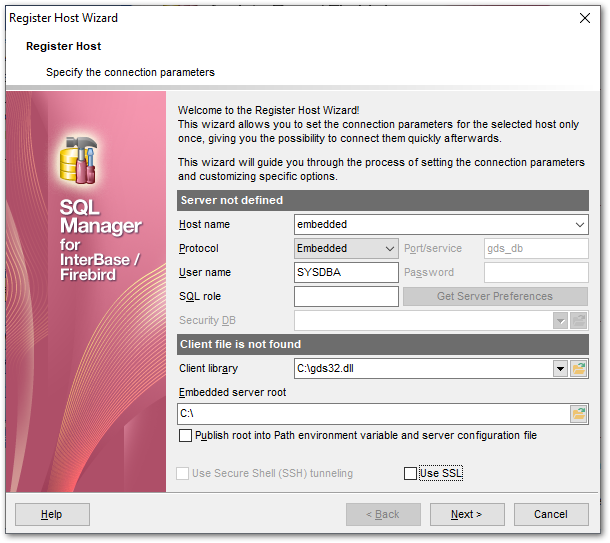
Host name
Type in, or use the drop-down list to specify the host name of the embedded server.
Client library
Type in or use the button to specify the path to the client library for the embedded server. The drop-down list contains the previously specified client libraries.
Firebird Embedded Server is intended to work with embedded databases. It consists of one *.dll file - fbembed.dll. This is a special client library that includes the server itself. When an application links to this library it loads the server and allows direct access to any database that is accessible on the local computer. This version of the server does not use a security database. The user name specified during the "logon" (no password authentication occurs) is used to manage user access to database objects (via SQL permissions) but if that user name is SYSDBA (or the owner of the database) then unrestricted access is possible.
Embedded server root
In Firebird 2.1 (and lower) the embedded server root is a directory where the executable file fbguard.exe is stored.
In Firebird 2.5 it is a directory that contains fbembed.dll file.
An embedded server locks a database file for its own exclusive use after successful connection. This means that you cannot access the same database from multiple embedded server processes simultaneously (or from any other servers, once an embedded server has locked the file).
Publish root into Path environment variable and server configuration file
Select this option to add the path specified in the Embedded server root field to the 'Path' environment variable and server configuration file.
If you want to use the local utilities (eg, gbak.exe) then you need to rename the library fbembed.dll to fbclient.dll, and place utilities into the folder where embedded server libraries are located.
Click the Next button to proceed to Setting specific options for the host being registered, to the SSH tunneling parameters step of the wizard (if the Use Secure Shell (SSH) tunneling option is enabled for the host), or to the SSL parameters step of the wizard (if the Use SSL option is enabled).