
Online Documentation for SQL Management Studio for InterBase/Firebird
Product Installation
If you are installing SQL Studio for the first time on your PC:
- download the SQL Studio distribution package from the download page available on our website;
- unzip the downloaded file to any local directory, e.g. C:\unzipped;
- run ibstudio.msi from the local directory and follow the instructions of the installation wizard;
- after the installation process is completed, find the SQL Studio shortcut in the corresponding group of Windows Start menu.
If you want to upgrade an installed copy of SQL Studio to the latest version:
- download the SQL Studio distribution package from the download page available at our site;
- unzip the downloaded file to any local directory, e.g. C:\unzipped;
- close SQL Studio application if it is running;
- run ibstudio.msi from the local directory and follow the instructions of the installation wizard.
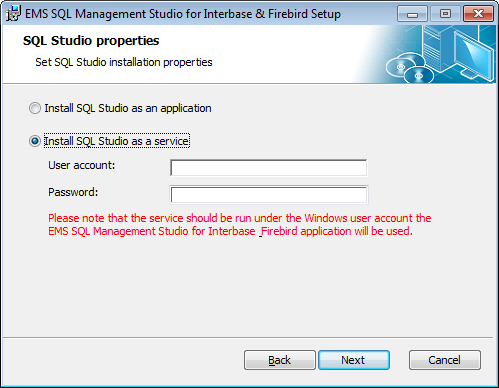
During the installation process you will be offered to select either to run SQL Studio as an application or a service.
When installed as a service, SQL Studio will run independently of the user account currently logged in and will use the Windows user account User name and Password specified during the installation process.
Note: Use DOMAIN_NAME\USER_NAME format to specify a domain user account.
Please note that the service must run under the Windows user account that will be used to run SQL Management Studio for InterBase/Firebird application.
In order to install the program in silent mode as an application you should execute the following command:
msiexec.exe /i /quiet xxstudio.msi
In order to install the program in the silent mode as a service execute the following command:
msiexec.exe /i /quiet xxstudio.msi SERVICE_INSTALL=1 SERVICE_USERNAME="computer_name\user_name" SERVICE_PASSWORD="password"
Please remember that the User account must be defined with the domain name or the computer name, as shown in the example above. You can use the ".\user_name" format as well.
|
See also: |
|
|


































































