
Online Documentation for All SQLManager.net Products
Selecting database
Use this step of the wizard to select database(s) for backup operation.
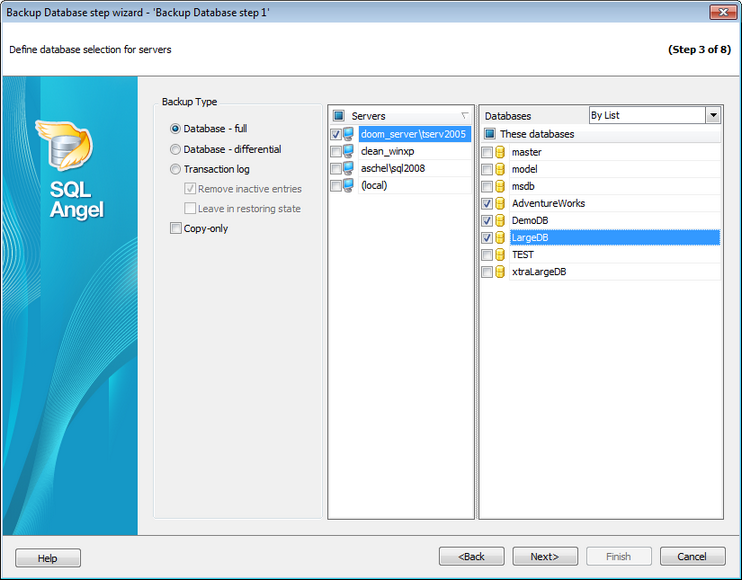
Backup Type
Use this parameter to define the backup type:
 Database - full (a full database backup which backs up the entire database including the transaction log)
Database - differential (a differential backup which only records the changes made to the data in the database after the last full database backup)
Transaction log (a sequence of log backups provided for a continuous chain of transaction information to support recovery forward from database, differential, or file backups)
Set  Remove inactive entries option on to truncate the live transaction log when you create a backup.
Set Leave in restoring state on to leave the database in restoring state to be unavailable to users until it is completely restored.
Set Copy-only option to create a copy-only backup which is a SQL Server backup that is independent of the sequence of conventional SQL Server backups.
Servers
Select the servers to run the operation on. If the servers name icon is grayed out the Angel service is not run (installed) or there is no connection to the server.
Note: Selecting servers is not available in Template mode.
Databases
If SQL Angel provider is used, you can select multiple databases, in case of SQL Server backup only one database can be specified.
All
Use this option to select both: system and user databases.
All system
This option indicates that only system databases should be backed up.
All user
Select this option to back up user databases only.
By mask
This option allows defining database selection by mask. Use * for a set of any characters and ? for any single character in the database name.
By list
This option allows you to select databases manually.
If you are creating a step in a policy template then you are able to enter databases manually.
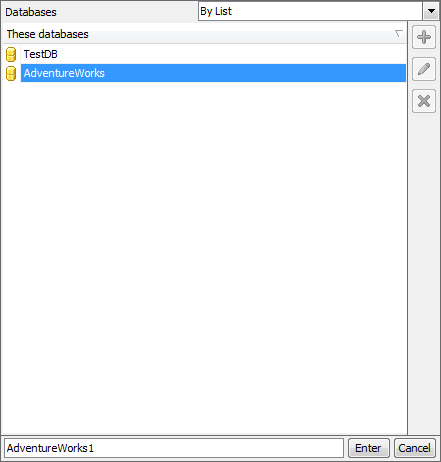
Use the  button or Ins key to define database name. After you click the Enter button the database will be added to the list.
Any database from the list can be  edited or
  deleted.


































































