Online Documentation for SQL Manager for SQL server
Selecting backup devices
Use this step of the wizard to specify the devices to backup the database to. Note that all the selected backup devices must be of the same type.
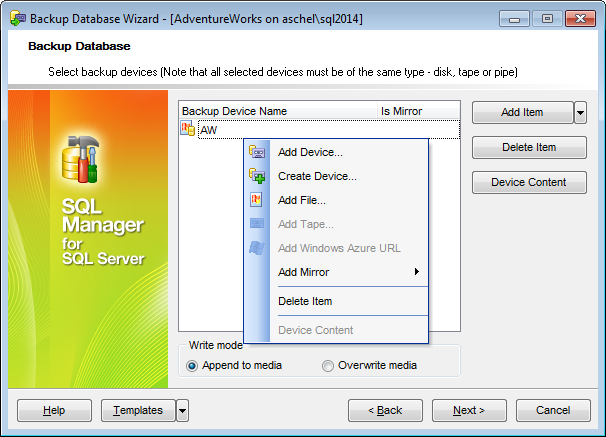
To add a device, click the Add Item button and select a media type from the menu. Alternatively, you can use the context menu of the Backup Device list area for the same purpose. Select the required backup device using the corresponding dialog.
To remove a device from the list, select it and click the Delete Item button.
To browse the selected device, click the Device Content button.
Using the Add Item menu and items of the context menu you can also create a new device and specify its properties using the New Logical Backup Device dialog, add a file, a tape or set mirroring of backup media.
For backups performed on the SQL Server 2014 adding Windows Azure URL is possible as well.
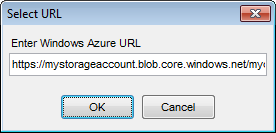
The URL format is used for creating backups to the Windows Azure Blob storage service.
Disk backup devices are files on hard disks or other disk storage media are the same as regular operating system files. Referring to a disk backup device is the same as referring to any other operating system file. You can define disk backup devices on a local disk of a server, or on a remote disk on a shared network resource, and they can be as large or as small as needed. The maximum file size is the free disk space available on the disk.
Tape backup devices are used in the same way as disk devices, but the tape device must be connected physically to the computer running an instance of SQL Server, and if a tape backup device is filled during the backup operation, but more data still needs to be written, SQL Server prompts for a new tape and continues the backup operation. To back up SQL Server data to tape, use a tape backup device or tape drive supported by the Microsoft Windows platform. Additionally, use only the tapes recommended by the drive manufacturer for the specific tape drive.
Write mode
Append to media / Overwrite media
Select whether the media should be appended or overwritten during the backup operation.
Click the Next button to proceed to the Setting schedule options step of the wizard.